
TalkDesk Integration
Overview
Integrate TalkDesk with Genfin to automatically send call recordings for analysis. This guide provides step-by-step instructions to set up the integration.
There are two steps: one in TalkDesk to set up an OAuth Client for Genfin to use and one in Genfin to add those credentials. Let's walk through them.
Integration
- Log into TalkDesk.
-
Navigate to "Builder" > "OAuth Clients". Note: If you do not see this option, either you need to use an admin account or your account is not a tier that includes this functionality.
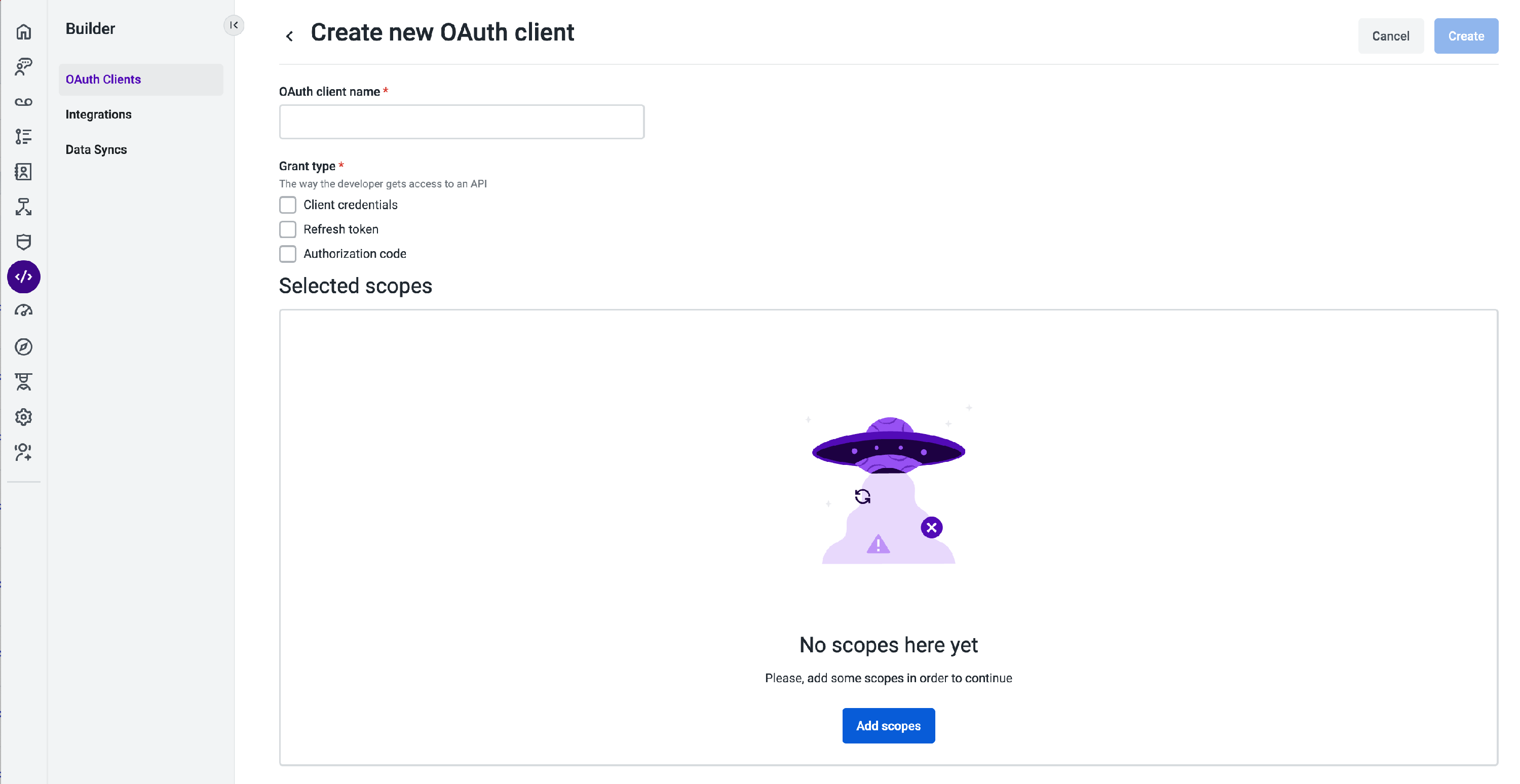
- Click "New OAuth client".
- Type in "GenFin" (or any name you'd prefer).
- Select "Client credentials".
- Select the following for scopes:
data-reports:read,data-reports:write,recordings:read,reports:read. -
After saving the new client, you will have a one-time chance to save the full set of credentials: Client ID and Client Secret. (Client ID is available on the OAuth Clients page in the list, but Client Secret is only available on creation.) You will also need the "Account Name", which is the short identifier at the beginning of your account's domain, the same that you use in the "Account" page to log in (i.e. "acme" is the account name for
acme.mytalkdesk.com).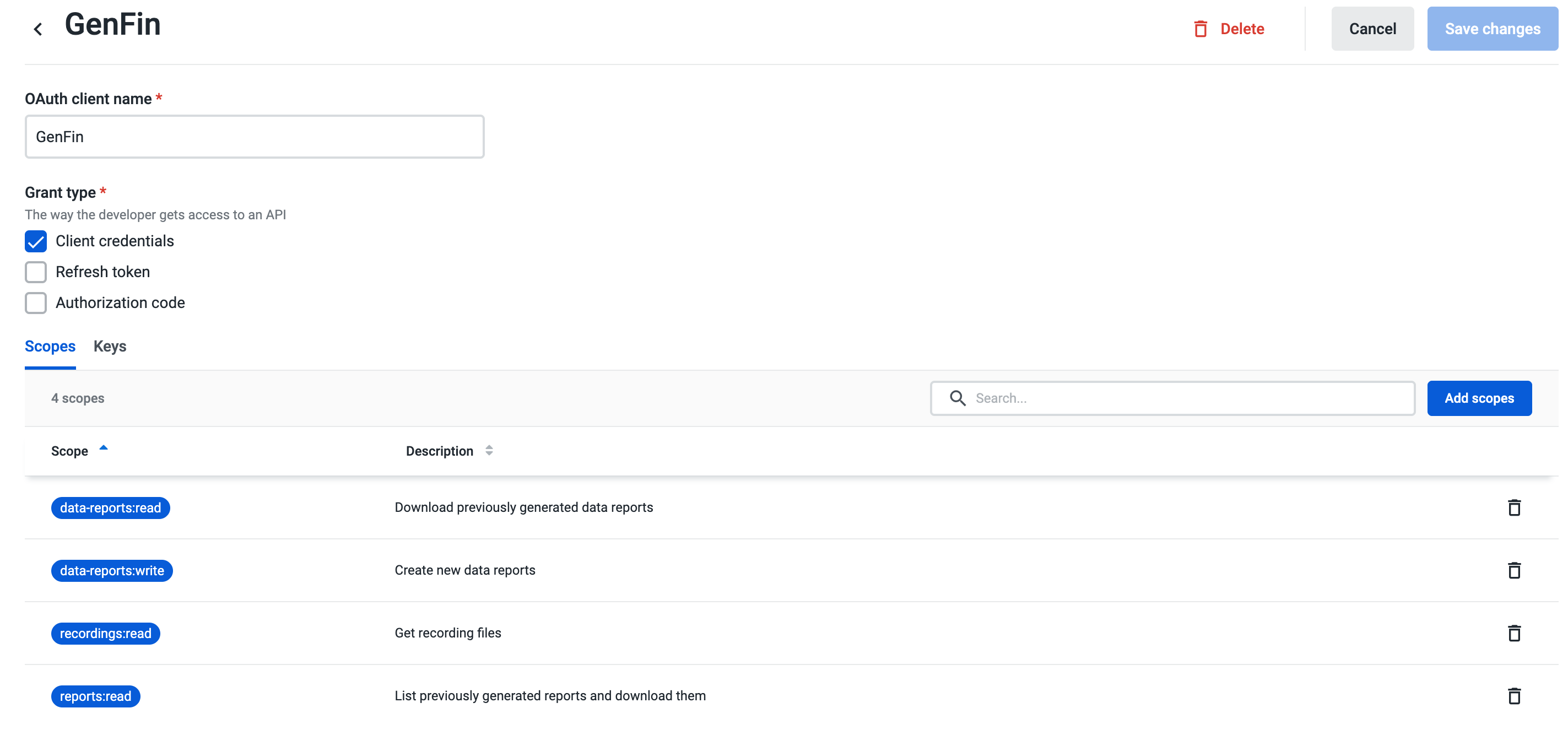
- Log into Genfin.
- Navigate to Organization.
- Scroll down to Integrations.
-
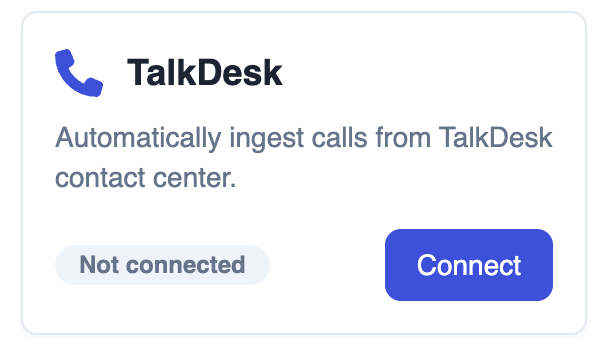
Under "TalkDesk", click "Connect".
-
Enter your Client ID, Client Secret, and Account Name. We currently limit our support to the US region.
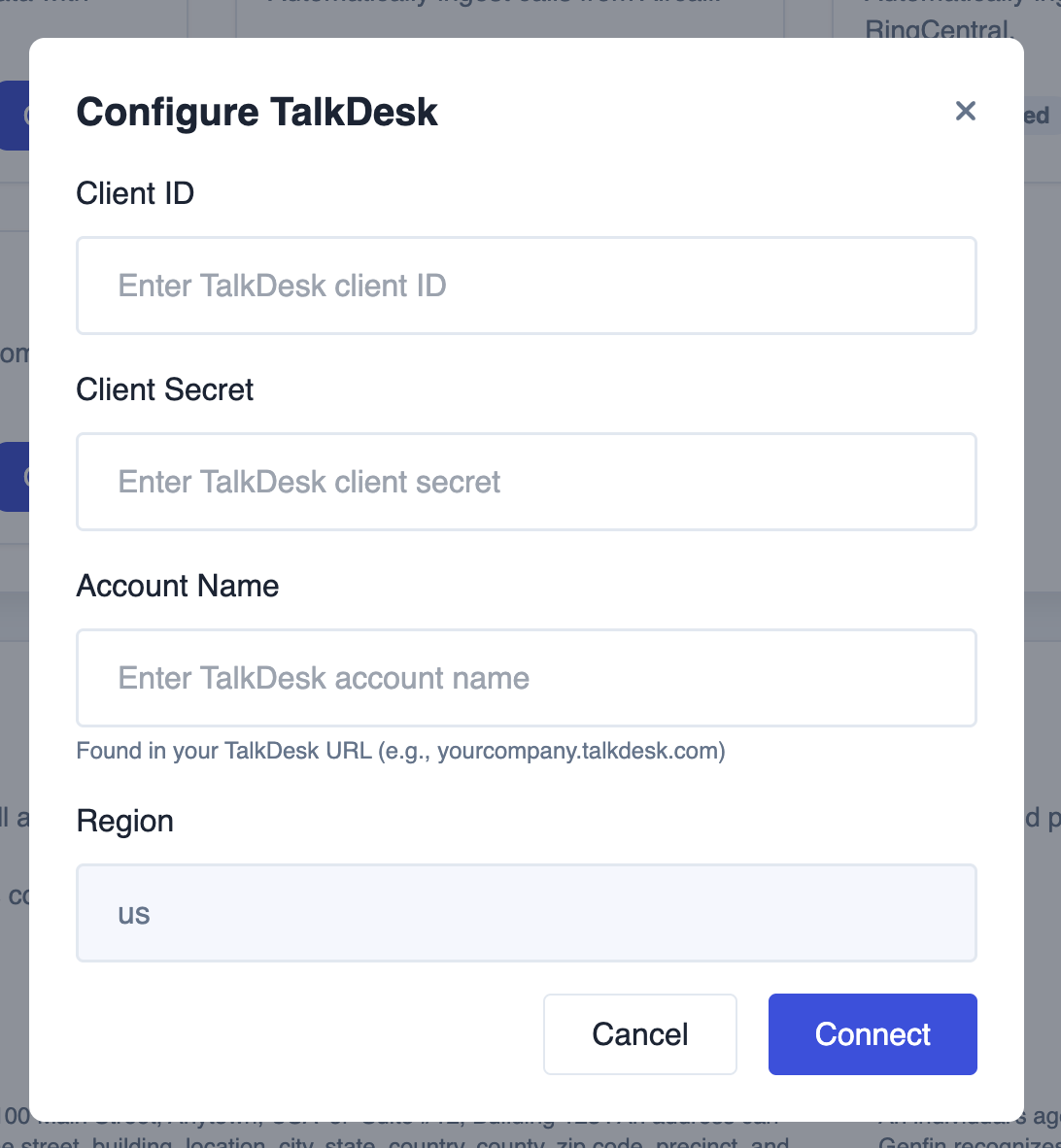
- Click "Connect".
-
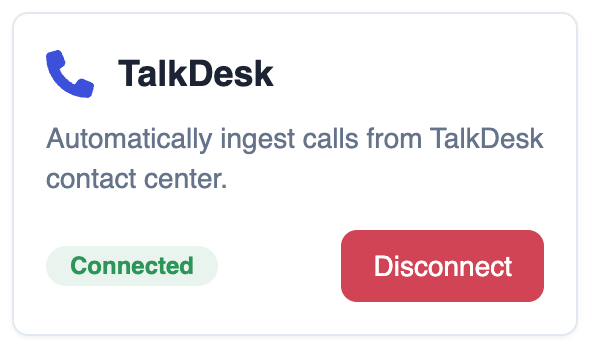
After it connects, it will say "Connected" for TalkDesk.
- Your integration is complete. You will start seeing calls as they come in.
