
Dialpad Integration
This guide provides step-by-step instructions for integrating Dialpad with Genfin. Genfin integrates with Dialpad via a webhook using event subscriptions under the hood, and it needs a Dialpad API Key to set up the connection.
Instructions
-
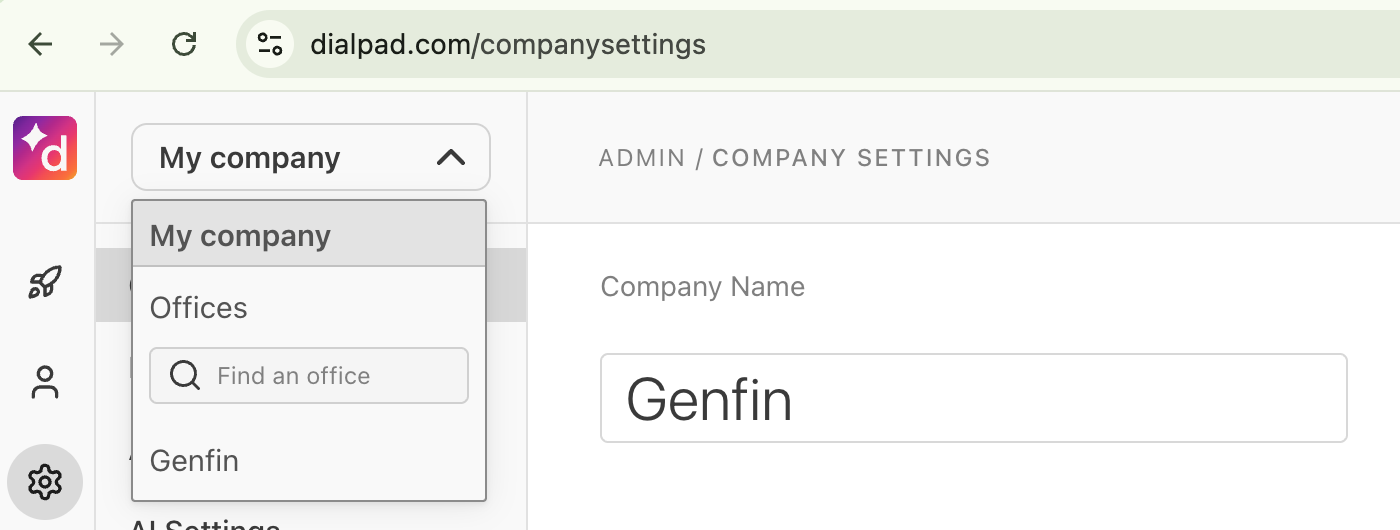
Sign into your Dialpad account and ensure it has API access (Pro or Enterprise accounts).
-
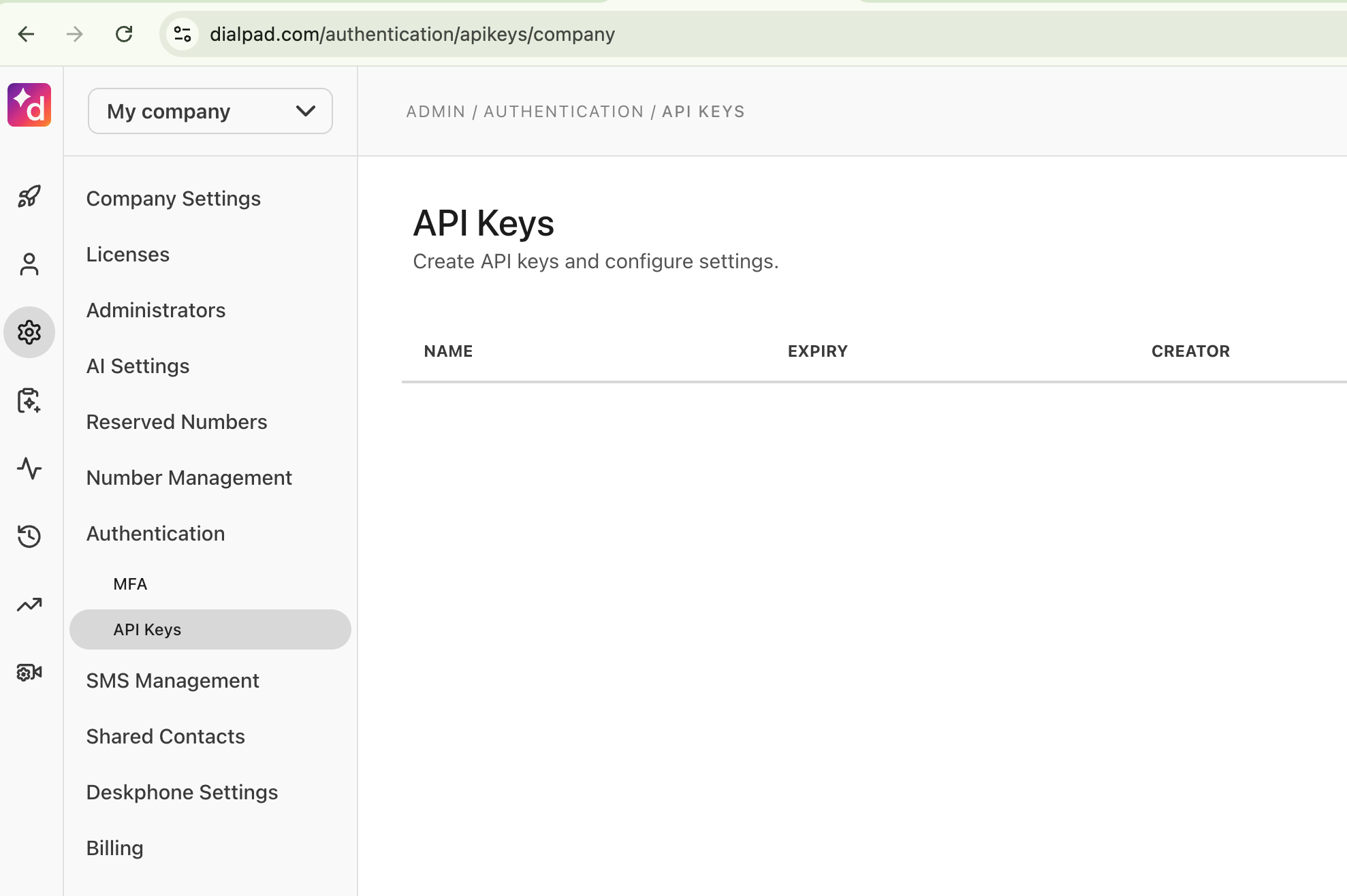
Visit "My Company" > "Authentication" > "API keys". If you do not see "Authentication" under "My Company", you are not a "Company Admin" role. You need to be logged in as the "Company Admin" to continue.
-
Click "Add key", and select Additional Scopes: "Recordings export".
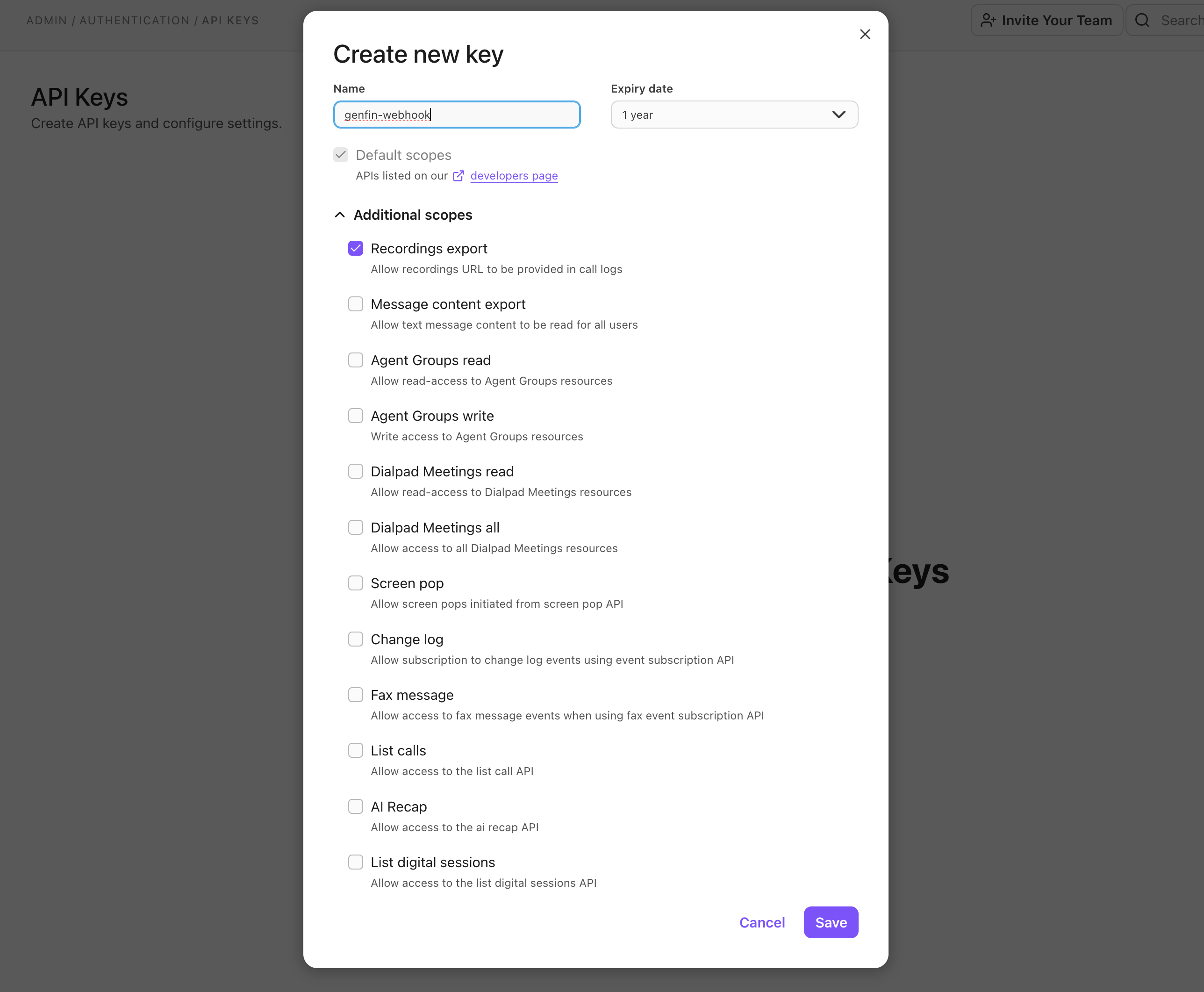
- Click "Save" then click "Copy Key". This will be your Dialpad API Key. See this Dialpad article for more detailed instructions.
-
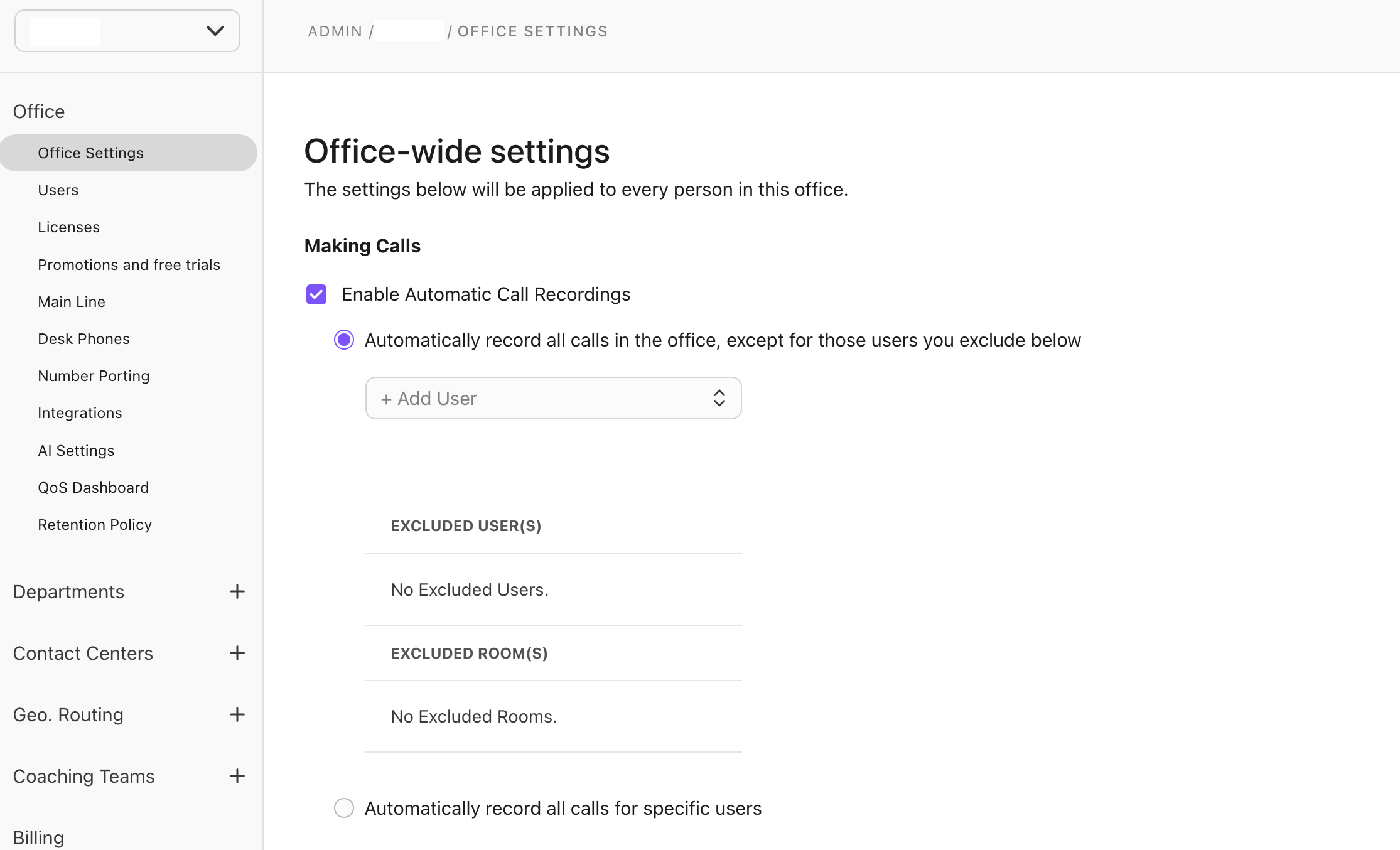
Ensure your calls are being recorded under "Office" > "Office Settings" > "Making Calls". You should see "Enable Automatic Call Recordings" as checked.
- Log into Genfin.
- Navigate to Settings > Organization and scroll down to "Integrations".
-
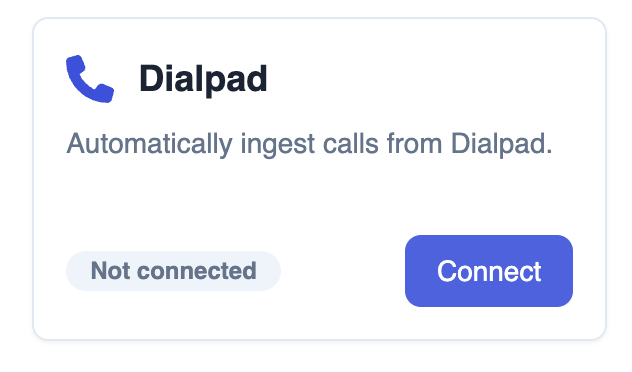
Click "Connect" on Dialpad.
-
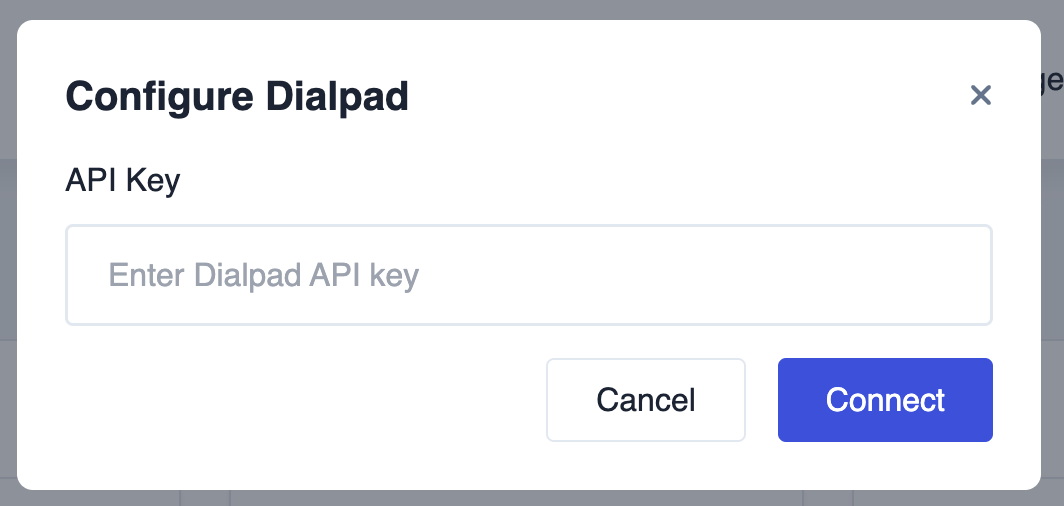
In the window, paste your Dialpad API Key and click "Connect".
-
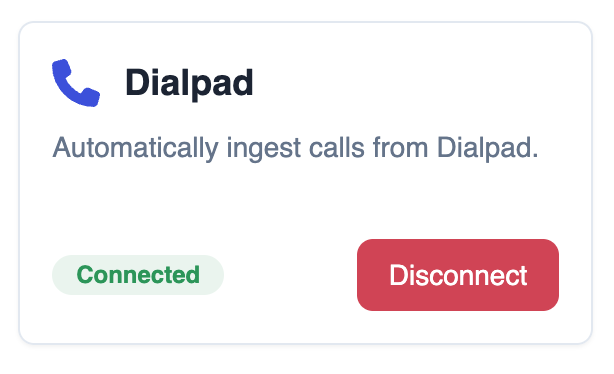
If the integration is successful, you will see "Connected" for Dialpad.
- New recorded Dialpad calls will now show up under "Calls" in Genfin.
